
I Turned Claude Into My Personal Stock Analyst (step-by-step guide)
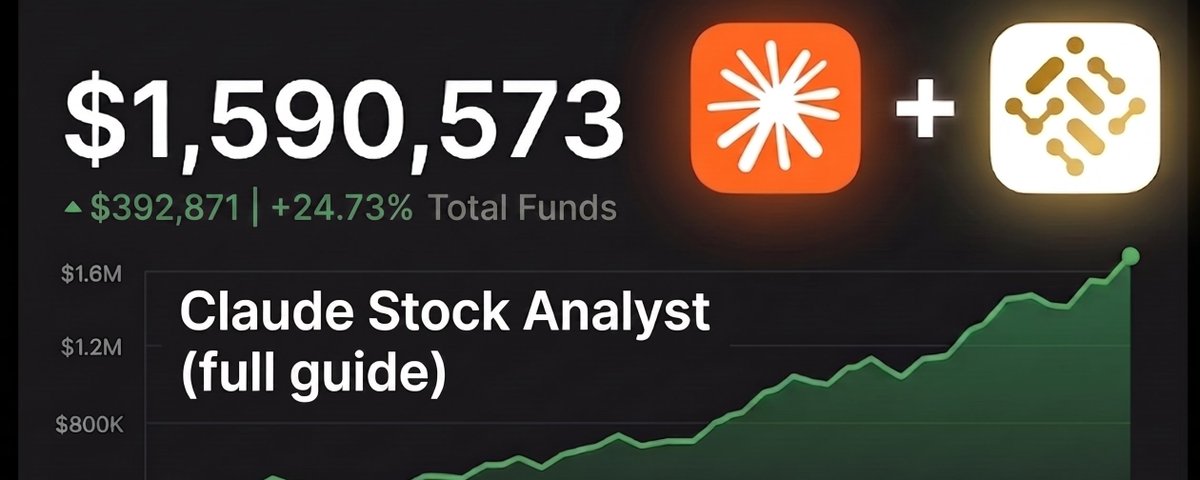
This system is a complete cheat code.
In just a few minutes, you can turn Claude into your personal financial advisor, pulling real-time market data and managing your entire portfolio autonomously.
I've been investing in stocks for 8 years and running this exact system daily for months. It has genuinely changed how I research and trade - I wish I had discovered it sooner.
In this article, I'm giving you the entire playbook for transforming Claude into your Chief of Investments:
This is a banger, and I haven't seen anyone else talk about anything even close to this.
Let's get right into things:
Connecting Claude to Live Market Data
The foundation of this entire system starts with connecting Claude to a live market data source. Without this, nothing else matters.
For this step, we won't be using any APIs; instead, we'll use the FMP connector.
I've tried many live market data MCPs, and this has been the best hands down.
Not sponsored - just genuinely a good product with 250 free calls a day.
How to Connect to FMP
Go into Claude → Connectors → Add connector → Browse connectors.
Here, you'll find an entire library of integrations you can search through.
Go ahead and search for "FMP."
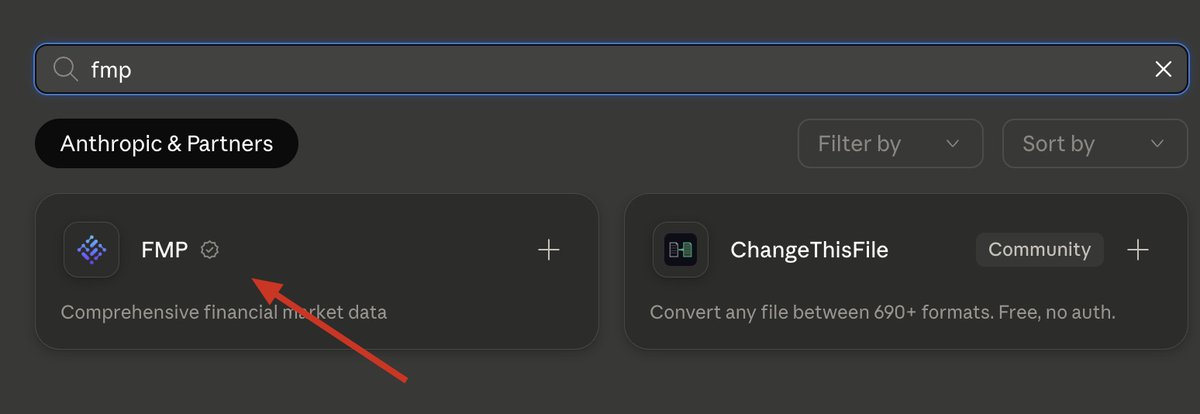
Next, follow the on-screen steps to connect Claude + FMP (sign in, verify, etc.).
What FMP gives you
Once connected, Claude has access to:
Pricing
As mentioned above, basic is free and gives you 250 calls a day, which is plenty to test everything in this article.
If you're a serious power user who wants to run multiple automated flows, the Starter plan at $19 a month is the sweet spot.
Again, not sponsored - that's just where I personally landed after using it properly.

One thing to note before we continue
Claude will sometimes default back to scraping the web instead of using FMP.
When that happens, you're getting Yahoo Finance and whatever else it found, not live data - and it won't tell you.
So every time you get a data source, check for the FMP logo in the output. If it isn't there, you're not looking at live data.
A simple habit that fix this: specify FMP explicitly in your prompt every time.
Example: "Use FMP connector for all queries in this chat."
Building Your Personal Memory & Context System
Now that Claude has access to live market data, we need to give it some personal context about you so it can use all the market data in a helpful way.
Folder Setup
Create a folder on your desktop with five Markdown files inside.
Everything about you as an investor.
Include: experience and background, goals and time horizon, risk tolerance, portfolio size, and so on.
Easiest way to build this: open a voice session with Claude and brain dump.

2. Strategy.md
Here, attach your investment framework.
Things like: maximum drawdown you'll accept, rebalancing parameters, position sizing targets, entry and exit criteria.

3. Portfolio.csv
Your current positions and weightings.
The more data you include here, the better.
I recommend a simple spreadsheet here

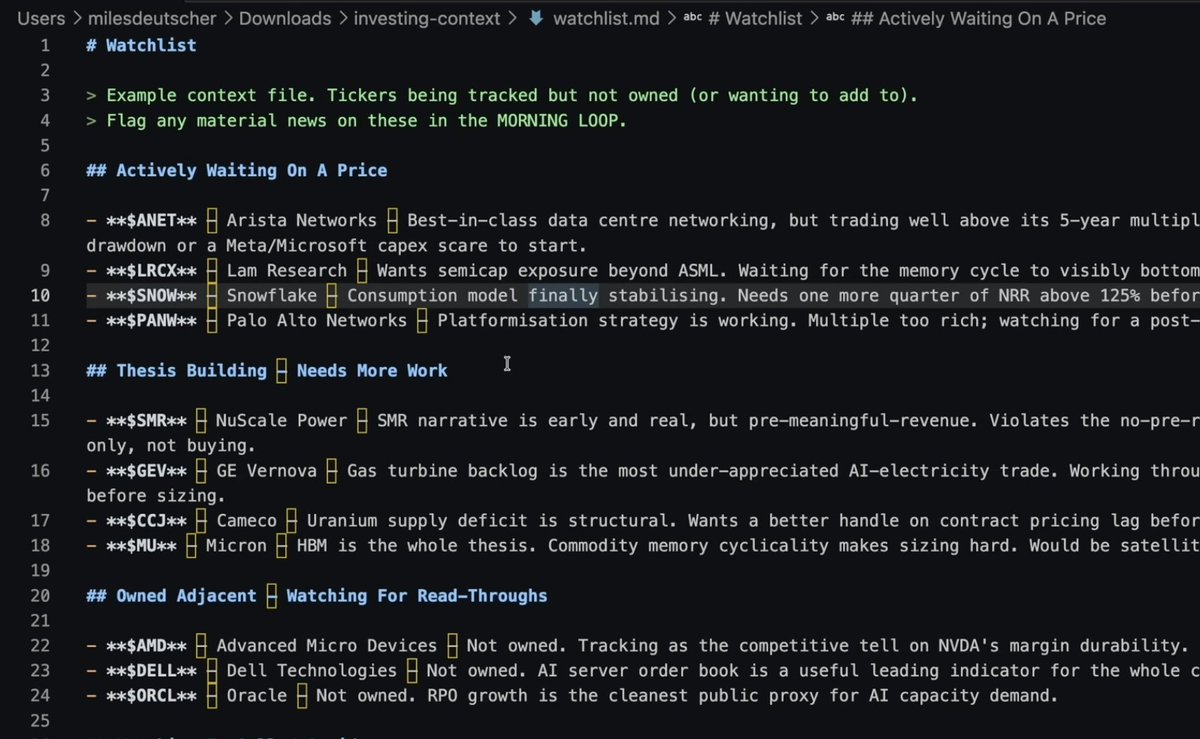
4. Watchlist.md
Your full watchlist (sectors, tickers, potential trade setups).
5. Prompts.md
Your saved prompts, so you're not rewriting them every session (more on this later).

Pro Tip: you don't need to set these folders up manually - you can just ask Claude to do it on your behalf and inject the data you give it into each.
To make things easy, at the very end of this article I've included a full setup guide that instructs Claude to complete this entire folder setup process in 60 seconds.
Stick around until the end of the article, and I'll share it with you directly.
How to Use the System (+ real prompting examples)
Everything up until this point was purely prerequisites.
Now, let me walk you through how to actually use the system and real prompting examples.
Setting up the workspace
Open Cowork on desktop rather than a normal chat.
Go ahead and start a new project called something like "My Investing."
Within the project, start a new chat and attach your folder we set up above, which contains all your investing context.

Let Claude know it will be strictly for FMP analysis.
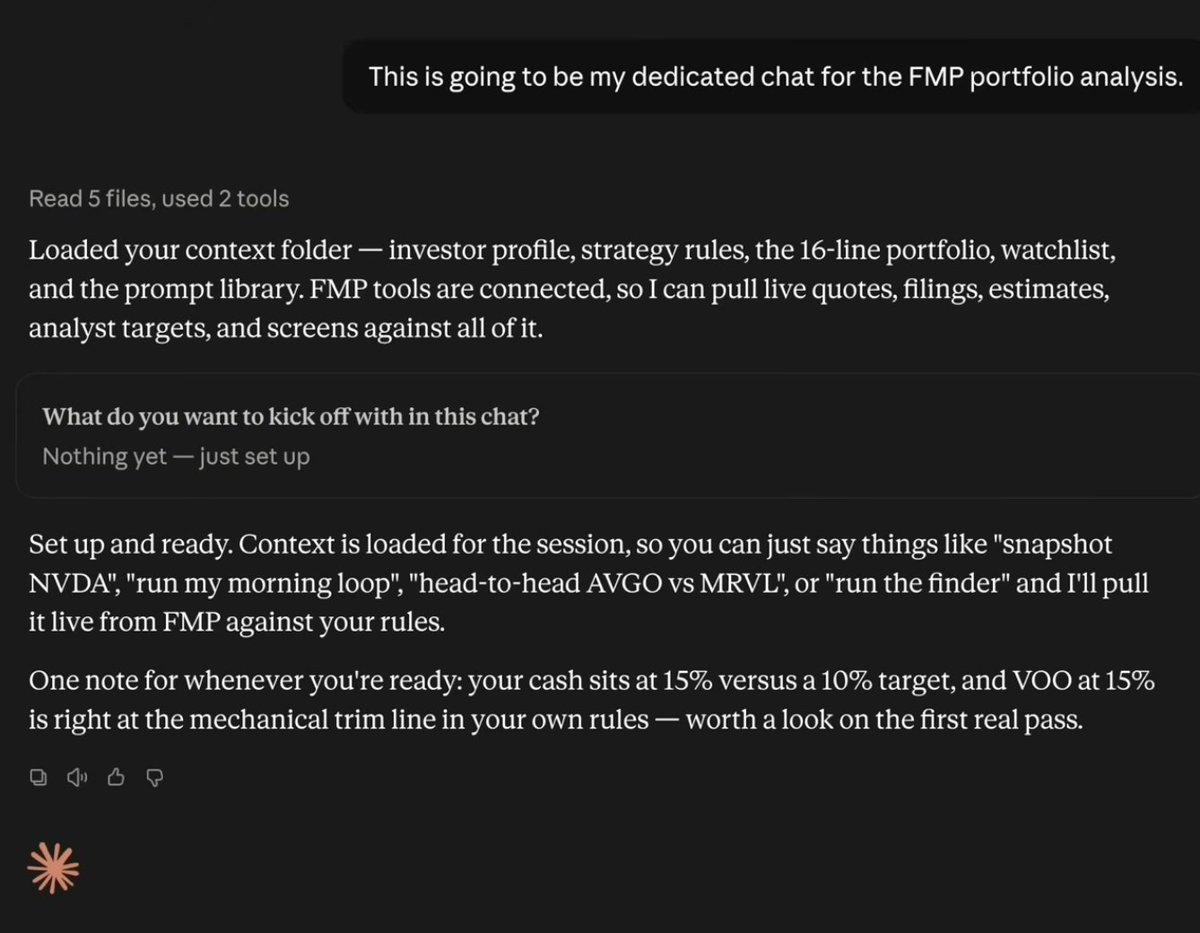
At the beginning of the chat, feel free to also verify if you're connected to FMP with a simple "are you connected to FMP?" verification prompt.
From here, you can now prompt your project for anything you could imagine
This list could go on forever, but let me show you some of my personal favorite workflows.
Prompting Claude for general portfolio/stock analysis.
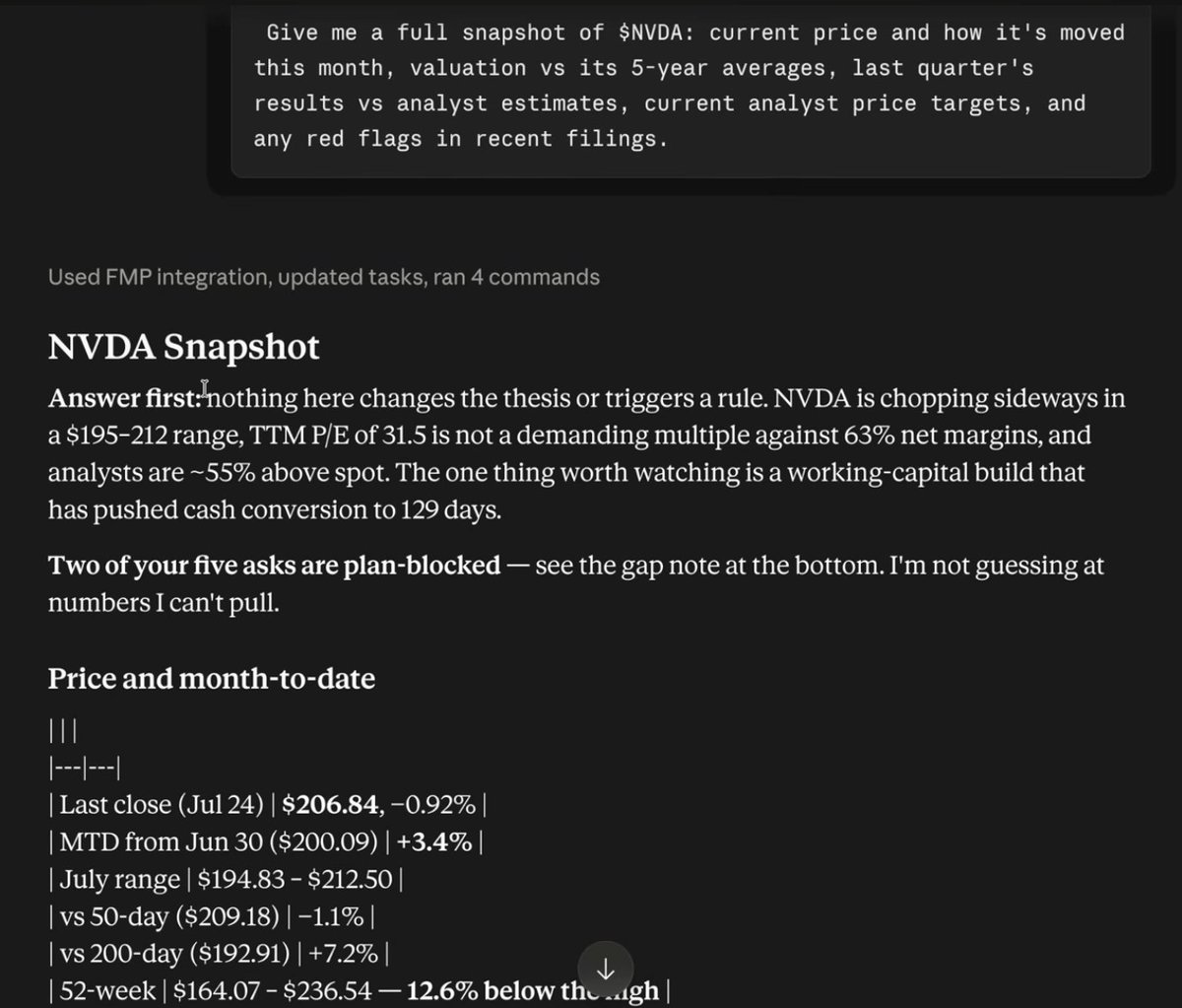
The cool thing about this is that since we built a memory system earlier, every response Claude gives you will actually be based on your personal investment thesis and goals.
If you include your ideal trading setups, Claude will also analyse various price data and let you know if any trades are forming based on your strategy (and exactly how to size into them).
2. Earnings Reports
The other day, this was actually incredibly helpful for me in identifying both $GOOGL and $META earnings reports. I hold both of these stocks, and instead of digging through news or financial reports, I just easily got Claude to send me reports directly with loops (more on loops later).
Example with $TSLA:

When asking for earnings reports, Claude will even give you direct links to sources to read further and give you a full breakdown of the bull/bear case based on your strategy.md file.
3. Comparisons
I've also found this system valuable for comparing stocks/ETFs against each other.
For example, I was looking to get exposure to a general robotics ETF, and I used this setup to compare all the various funds against each other (expense ratio, historical performance, company weightings, etc.)
Also very good for individual company analysis ( $AMD versus $NVDA ):

Other prompts worth mentioning
You get the idea. This is a super valuable tool for financial research, trading ideas, and even autonomous portfolio management - the best part is, it literally only takes <5 minutes to get started.
Automating It (Loop Engineering)
Everything so far still requires you to open Claude and send prompts.
If you want fully autonomous data reporting, this section is for you.
Scheduled Tasks
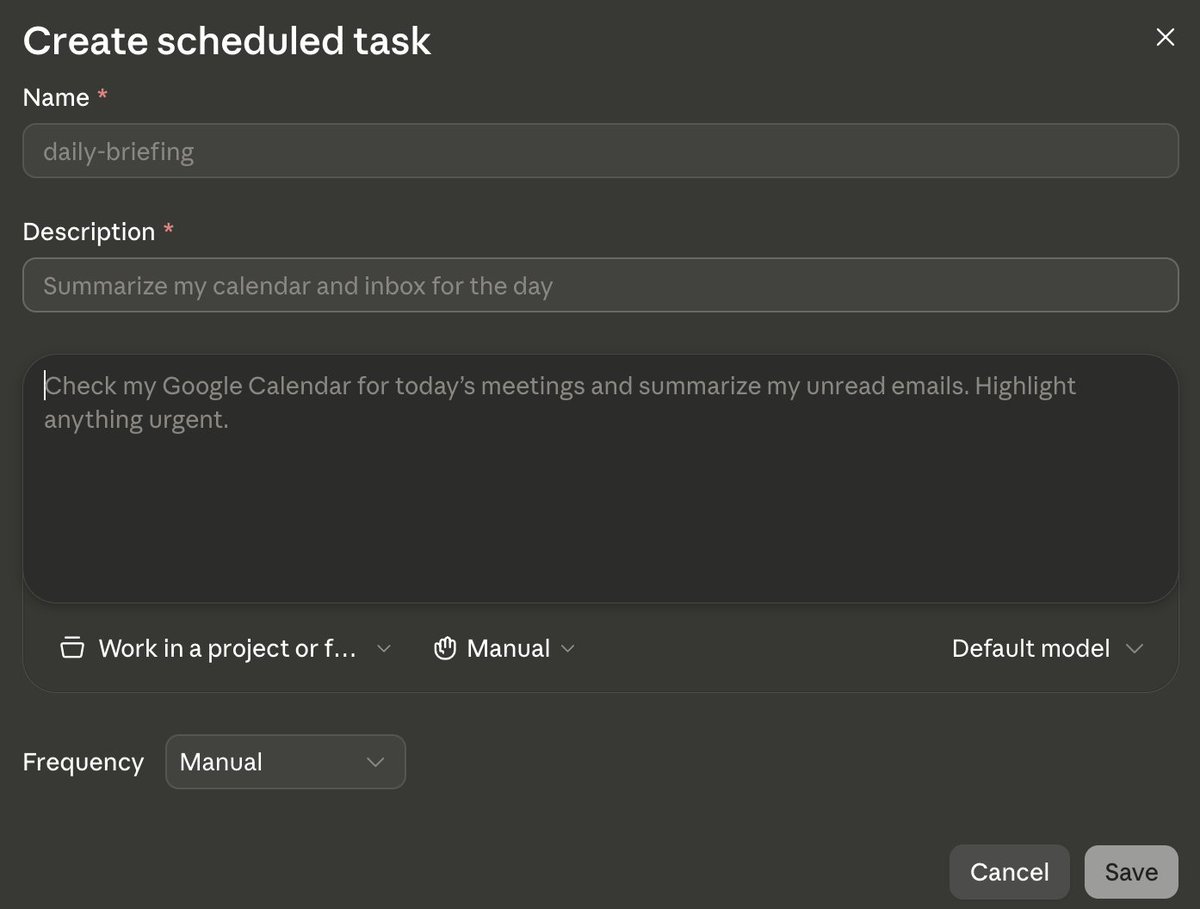
Let's say you want a daily market report every day at 9 am. You can prompt Claude exactly for that.
Cowork → Scheduled Tasks → New task
Simply create a scheduled task, attach your investment folder/project, and add the prompt you want Claude to run.
Some ideas for scheduled tasks

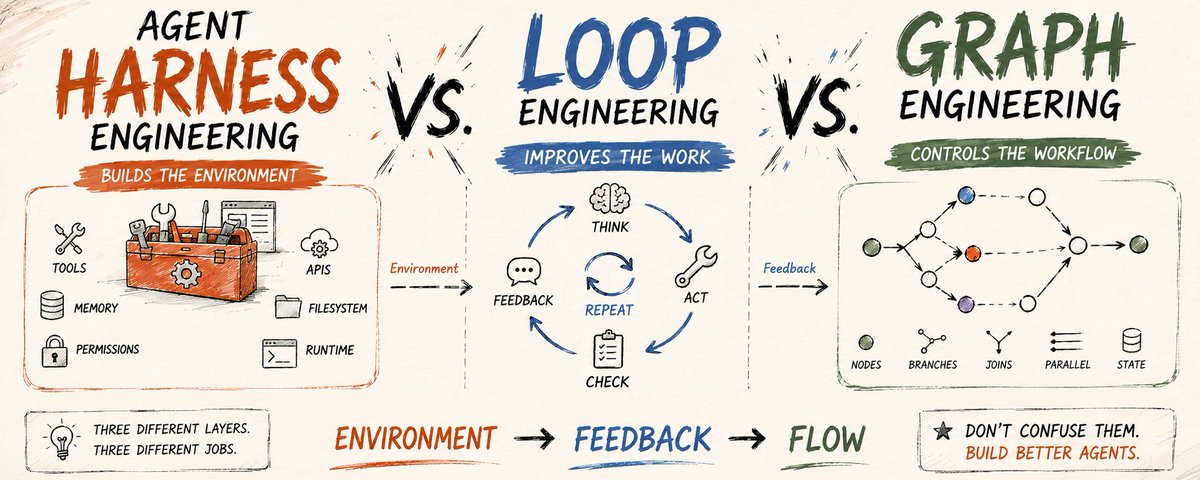
Loop & Goal Engineering
You can also run /loop & /goal inside Claude to have Claude use the FMP connector to work towards a goal.
Example: "/goal research the robotics sector until you find 10 companies that fit my exact investment parameters."
Optimising the System & Pro Tips
Final tips before we close out.
To take things a step further, you can actually even automate real trade execution.
You would do that by connecting Claude to your exchange and giving it a set of instructions for executing real positions.
If you're interested in setting that up and adding an extra layer, read this:
2. Dashboards & Visuals
A cool use case for this system is creating custom dashboards and vibe-coded tools based on your data.
For example, you could create a visual of all your holdings, a graph of your portfolio performance, bar charts, etc.
3. System Prompts
Feel free to create custom instructions and system prompts inside your investing project.
For example, if you want Claude to be concise with outputs or respond a certain way, you can always add an Instruction.md file in your context layer.
Lastly, I have to mention this: always be cautious when taking advice from AI. These are powerful tools, but always use your own judgment before letting AI execute anything on your behalf.
Final Thoughts
As mentioned earlier, if you want Claude to set up this entire system for you, I put together a free guide that instructs Claude on exactly what to do.
All I ask for you to gain access is two things:
Get started here:
https://milesdeutscher.com.au/ytwtxt
I hope you found this article valuable.
If you did, be sure to follow me here @milesdeutscher.
For deeper AI insights, follow me over on @aiedge_.
Lastly, please Like/Repost this article so others can see it.
Thank you for making it this far.
-Miles💙